英文WindowsXP如何正确显示中文
英文WindowsXP安装后中文文件夹、文本显示为乱码,一般是由于在安装过程中没有恰当配置区域和语言选项造成的。只要在系统启动进入后重新设置一下区域和语言选项即可,具体步骤如下: After installing WindowsXP English Version, you find all the Chinese characters in text file and Folders named with Chinese character cannot display correctly. Generally this is due to improper settings of Regional and Language Options. After you start and enter the operationg system, the following operations can help you get everything all right: 1. Enter the "Regional and Language Options".(进入区域和语言设置)
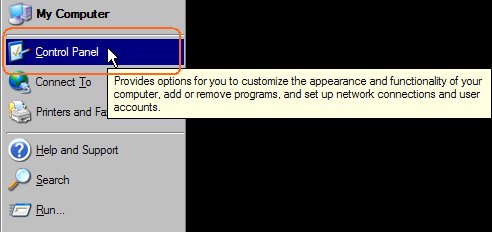
- Press "Start" button, choose "Control Panel", then find "Regional and Language Settings"(if you find the control panel is displayed in WindowsXP style, you can find it inside Regional... like item ). Double click the icon.(进入开始菜单,选择控制面板,找到“区域和语言设置”选项,双击打开):
 2. Settings
- On the "Languages" card, select the "install files for East Asian languages":(在Language选项卡上,选中“安装东亚语言支持文件”), DON'T click the OK button, there's still other work to do.

- Then, switch to the "Advanced" card. Here, in the first part, you should choose "Chinese(PRC)" for programs in non-unicode languages.(在这里的第一部分,选择Chinese(PRC)作为非unicode编码程序的默认语言);
- Then select ALL the Simplified Chinese related fonts in the second part..you can also choose other fonts such as Traditional Chinese here as you wish, but the Simplified Chinese fonts are necessary for good support for Chinese.(在第二部分,选择所有的简体中文字体以安装,这样可以让系统尽可能好地获得中文支持).

- Then press "OK". You may be prompted that the necessary files are already on harddisk, or it can be reached from Windows installation CD, just choose install from the HARDDISK rather than CD is ok.(然后点击OK。可能会被提示,既可从硬盘获取必要的安装文件,亦可插入windows安装CD,这里选择从硬盘即可,免去插入CD的麻烦)。
- Reboot when all installations are finished.(安装完毕,重启)。


 ;
;